
Microsoft Excel is a vital tool for data analysis, finance, project management, and general office productivity. Whether you’re a student or a working professional, you should know the most used Excel formulas. This knowledge can save hours of manual work. It also helps reduce costly errors. In this post, you’ll learn about the 20 most useful Excel formulas. These formulas can help you calculate, analyze, and manage your data efficiently. From basic calculations to more advanced logic-based functions, this guide is designed to make your Excel experience easier.
Why Learn Excel Formulas?
Understanding what is Excel and how to use formulas helps in:
- Automate repetitive tasks.
- Analyze data faster
- Making appropriate decisions based on insights
- Improve your advanced Excel skill set
1. SUM
Usage: =SUM(A1:A5)
Adds numbers within a range. Totals are commonly used in budgeting and reporting.
2. AVERAGE
Usage: =AVERAGE(B1:B5)
Calculates the average of selected values—ideal for performance monitoring.
3. IF
Usage: =IF(A1>50, “Pass”, “Fail”)
A classic IF formula in Excel for applying conditions.
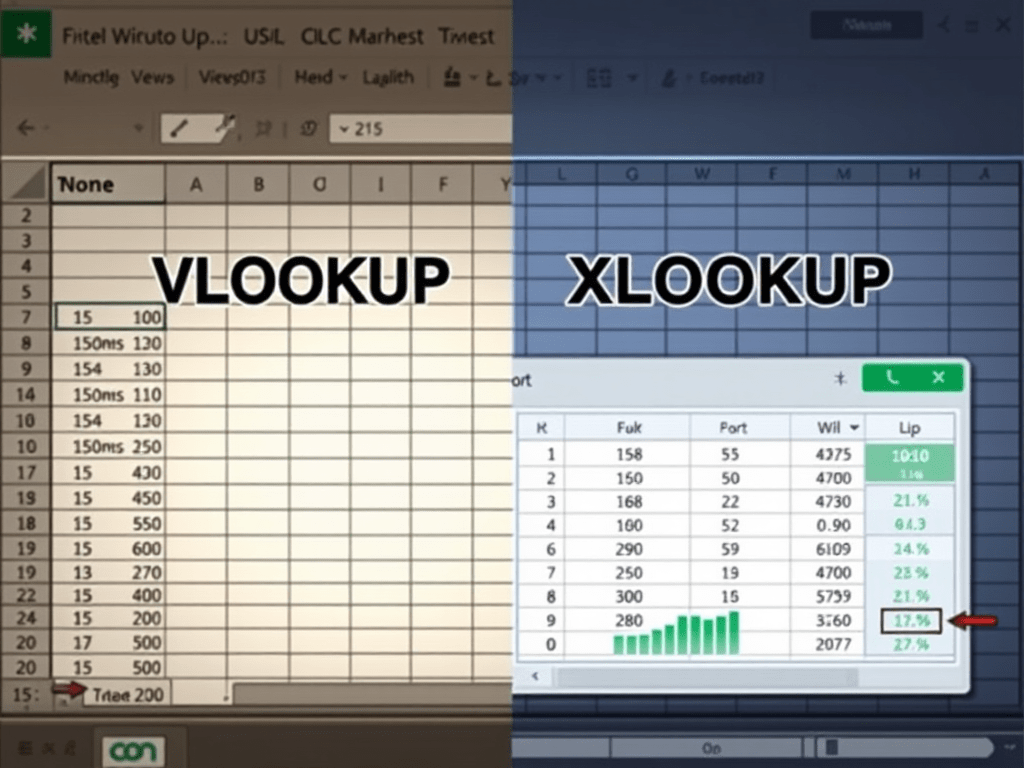
4. VLOOKUP
Usage: =VLOOKUP(101, A2:C10, 2, FALSE)
Finds data vertically from a table, which is useful for database lookups.
5. XLOOKUP
Usage: =XLOOKUP(101, A2:A10, B2:B10)
VLOOKUP’s modern replacement is simpler and more flexible.
6. INDEX
Usage: =INDEX(B2:D5, 2, 3)
Returns the value from a specific cell position in a range.
7. MATCH
Usage: =MATCH(75, A1:A10, 0)
Determines the relative position of a value within a list or range.
8. LEN
Usage: =LEN(A1)
Counts the number of characters in a cell; useful for data cleanup.
9. CONCATENATE
Usage: =CONCATENATE(A1, ” “, B1)
Joins multiple text strings—typically used for full names or labels.
10. TODAY
Usage: =TODAY()
Returns the current date, which is automatically updated every day.
11. NOW
Usage: =NOW()
Returns the current date and time, which is ideal for time stamping.
12. ROUND
Usage: =ROUND(A1, 2)
Rounds a number to a specific number of decimal places.
13. COUNT
Usage: =COUNT(A1:A10)
It counts numeric entries, which is useful for data validation.
14. COUNTA
Usage: =COUNTA(A1:A10)
Counts all non-empty cells, including text and numbers.
15. COUNTIF
Usage: =COUNTIF(B1:B10, “>70”)
Counts cells that meet a specific condition—ideal for setting scoring thresholds.
16. SUMIF
Usage: =SUMIF(A1:A10, “>100”)
Sums values according to a condition, which is commonly used in budgeting.
17. TRIM
Usage: =TRIM(A1)
To help clean up imported data, extra spaces are removed from the text.
18. LEFT()/RIGHT()
Usage: =LEFT(A1, 4) / =RIGHT(A1, 3)
Extracts characters from the beginning or end of a text, which is useful for coding.
19. ISERROR
Usage: =ISERROR(A1/B1)
Checks whether a formula returns an error, which helps to avoid broken outputs.
20. IFERROR
Usage: =IFERROR(A1/B1, “Error”)
Replaces errors with custom messages—essential in dashboards.
Expert Tip: Start with Real Use Cases.
Applying formulas to real-world problems makes learning them much easier. For example:
- Use percentage formula in Excel to calculate discounts in invoices
- Use IF formula in Excel to auto-categorize expenses
- Use COUNTIF to track performance in a dashboard.
You can download our Excel formulas PDF or visit our tools section for practicing with workbooks or downloading other resources.
FAQs
What is MS Excel mainly used for?
MS Excel is commonly used for data analysis, financial modeling, project management, and report creation.
How do I start using formulas in Excel?
Click on a cell, type =, and enter your formula. Excel includes autocomplete to help with function syntax.
Which formula works best for data validation?
To flag invalid entries, use IF, ISERROR, and COUNTIF together.
Where can I get an Excel formulas list?
You can access the full list inside Excel under the Formulas tab. Alternatively, you can visit Excel Formulas for a comprehensive list.
Are these formulas part of advanced Excel skills?
Some, like INDEX-MATCH or DATEDIF, are considered advanced Excel. Others are basics that everyone should know.
How can I learn Excel formulas faster?
Start with the most useful Excel formulas like =SUM(), =IF(), and =VLOOKUP(). Practice with real-life data and refer to an Excel Formulas Cheat Sheet PDF.
What is the best way to calculate percentages in Excel?
Use =A1/B1 and format the result as a percentage. It’s a simple yet powerful percentage formula in Excel.
Are these formulas available in all Excel versions?
Most of these are available in all versions, but XLOOKUP() is only available in Excel 365 and 2019 onward.
Conclusion
Mastering these 20 most used Excel formulas can significantly increase your productivity. It can also reduce manual work and help you make data-driven decisions. Whether you’re just getting started, knowing the right formula for the right task is essential. If you are looking to improve your skills, it remains crucial to know the right formulas.
Want to know more? Bookmark this article, share it with your colleagues, or download an Excel cheat sheet for later use.



 The Excel Varsity
Leave a comment