
In today’s data-driven world, Excel formulas are essential tools for anyone working with spreadsheets. From students calculating grades to business professionals managing financial models, formulas help simplify complex tasks. Whether you’re just getting started, this guide will walk you through everything step by step.
If you’re looking to improve your MS Excel formulas skills, this guide will walk you through improvements. If you’ve ever searched for ways to calculate percentages, you’ve come to the right place. You also be looking to work with large datasets. You want to speed up your tasks using Excel shortcut keys. You’re in the right place. You’ll also find a thorough Excel formulas list for reference. You can even download it to PDF for offline access. Whether you’re using these in your everyday Excel sheet, these formulas can significantly boost your productivity. They are also useful during advanced data analysis.
Table of Contents
What Are Excel Formulas?
Formulas in Excel are expressions that calculate the value of a cell. Every formula begins with an equals sign (=), followed by functions, cell references, or operators.
Examples:
- =A1+A2 (Adds values in A1 and A2)
- =SUM(B1:B5) (Returns the total of B1 through B5)
Formula Tip: Formulas in Excel start with = and support multiple operations like add, minus, multiply, divide, and conditional checks.
Why Excel Formulas Matter in Real Life
- Finance: Calculate interest, loan EMIs, and investments.
- Education: Tabulate grades, percentage, averages.
- Business: Analyze sales, inventory, and forecasts.
- Data Analysis: Clean, process, and visualize data.
Mastering ms Excel formulas enhances decision-making and automates repetitive tasks.
Main Excel Formula Categories
Math & Trigonometry Functions
Useful for calculations like addition, subtraction, multiplication, and trigonometric functions.
Common Formulas:
- =SUM(A1:A5) — Adds values
- =PRODUCT(A1:A3) — Multiplies
- =A1-A2 — Subtracts
- =A1*A2 — Multiply
- =ABS(A1) — Absolute value
- =POWER(A1,2) — Power of a number
- =SQRT(A1) — Square root
Logical Functions
Perform conditional checks and return specific results.
Examples:
- =IF(A1>100, “High”, “Low”) — Basic condition
- =AND(A1>0, B1<10) — Returns TRUE if both are TRUE
- =OR(A1>0, B1<10) — Returns TRUE if any is TRUE
- =NOT(A1=100) — Returns TRUE if false
Text Functions
Manipulate and clean text data.
Examples:
- =CONCATENATE(A1, B1) or =TEXTJOIN(” “, TRUE, A1, B1)
- =LEFT(A1, 5) — Extracts left part of text
- =RIGHT(A1, 3) — Extracts right
- =LEN(A1) — Length of text
- =LOWER/UPPER(A1) — Change case
Lookup & Reference Functions
Fetch data from other cells or sheets.
Examples:
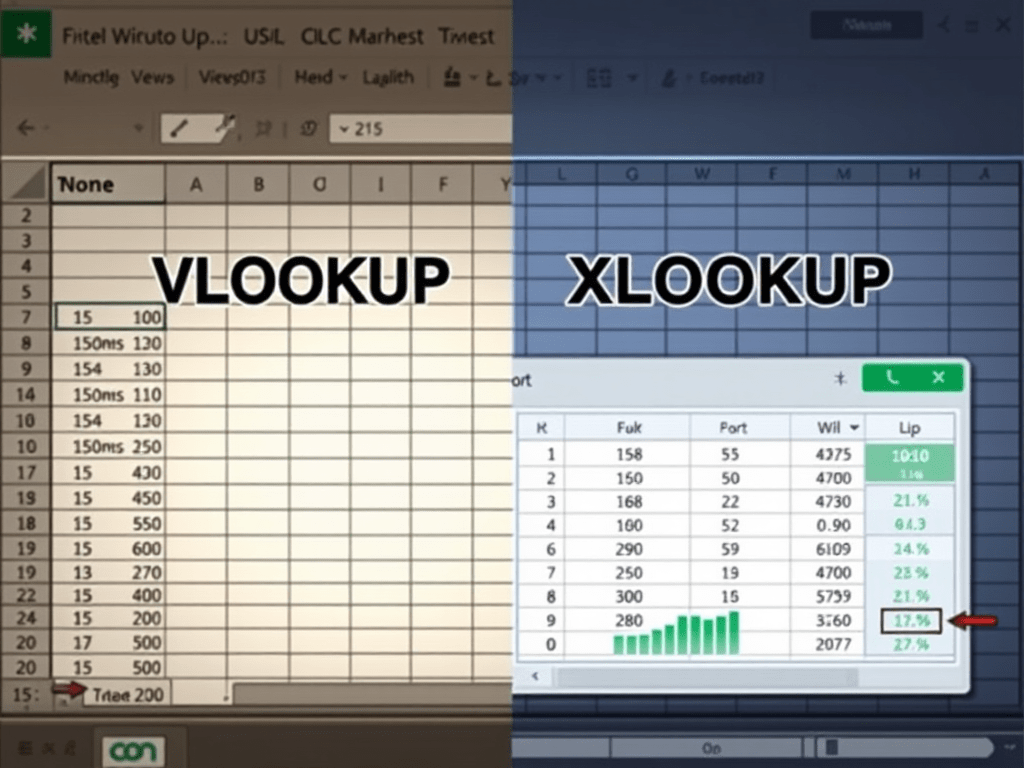
- =VLOOKUP(A1, B1:C10, 2, FALSE)
- =HLOOKUP() — Horizontal lookup
- =INDEX() and =MATCH() — Dynamic lookup
- =XLOOKUP() — Modern replacement of VLOOKUP
Statistical Functions
Summarize data using averages, medians, and more.
Examples:
- =AVERAGE(A1:A10)
- =MEDIAN(A1:A10)
- =MODE.SNGL(A1:A10)
- =STDEV.S(A1:A10)
Date & Time Excel Formulas
Calculate date differences and format dates.
Examples:
- =TODAY()
- =NOW()
- =DATEDIF(A1, B1, “D”) — Days between two dates
- =TEXT(A1, “dd-mm-yyyy”)
Financial Functions
Used for interest, EMI, depreciation, and investments.
Examples:
- =PMT(rate, nper, pv) — Loan payment
- =FV(rate, nper, pmt) — Future value
- =NPV(rate, values) — Net Present Value
- =IRR(values) — Internal Rate of Return
Information Functions
Check data types and conditions.
Examples:
- =ISNUMBER(A1)
- =ISERROR(A1)
- =TYPE(A1) — Returns data type
- =INFO(“directory”) — System info
Array & Dynamic Array Functions
Operate on multiple cells and spill results.
Examples:
- =SEQUENCE(5)
- =UNIQUE(A1:A10)
- =SORT(A1:A10)
- =FILTER(A2:A10, B2:B10=”Active”)
Database Functions
Advanced analysis using criteria-based filtering.
Examples:
- =DSUM(Database, “Field”, Criteria)
- =DCOUNT()
- =DAVERAGE()
20 Most Used Excel Formulas
- =SUM()
- =AVERAGE()
- =IF()
- =VLOOKUP()
- =XLOOKUP()
- =INDEX()
- =MATCH()
- =LEN()
- =CONCATENATE()
- =TODAY()
- =NOW()
- =ROUND()
- =COUNT()
- =COUNTA()
- =COUNTIF()
- =SUMIF()
- =TRIM()
- =LEFT()/RIGHT()
- =ISERROR()
- =IFERROR()
Tips for Using Excel Formulas Efficiently
- Use named ranges for readability
- Combine IF with AND/OR for logic-heavy operations
- Lock cells with $ to fix references
- Check errors using IFERROR()
- Use FORMULATEXT() to display formula in a cell
Excel Formulas Shortcut Keys
- Ctrl + (Grave accent) — Show formulas
- F2 — Edit active cell
- Alt + = — AutoSum
- Ctrl + Shift + Enter — Enter array formula (legacy)
- Ctrl + Shift + L — Add filter
FAQs
What is the most used formula in Excel?
=SUM() is widely considered the most used formula across all types of users.
In Excel, formula for percentage?
Use =A1/B1 and format as percentage. Or, =A1*100 & “%”
How many Excel formulas are there?
Microsoft Excel supports over 475 built-in functions as of Office 365.
How to convert Excel formulas to PDF?
Use File > Save As > Choose PDF. To show formulas, press Ctrl + before saving.
What are main Excel formulas every user should know?
Start with: SUM, IF, VLOOKUP, AVERAGE, COUNTIF, and INDEX-MATCH.
Conclusion
Mastering Excel formulas transforms how you manage and analyze data. From simple calculations to complex models, understanding the full Excel formulas list helps unlock Excel’s true power. Download our Excel Formulas Cheat Sheet PDF or visit our Excel Tools section for more resources to practice and learn.
Explore more on Microsoft’s official Excel documentation: support.microsoft.com/excel



 The Excel Varsity